
When Kids Borrow Your Phone
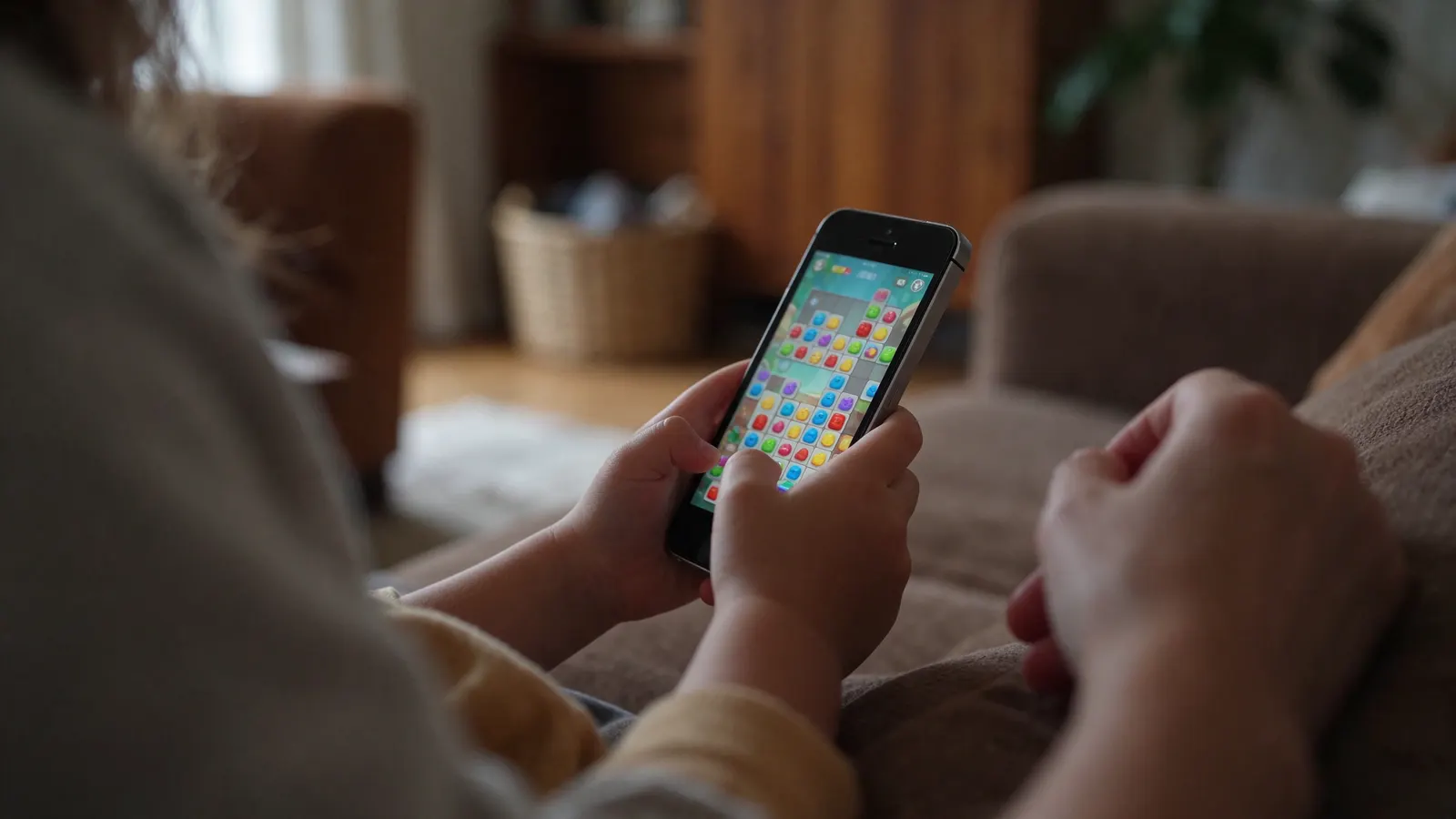
Use Guided Access to lock the phone to one app before you hand it over: open the game or video, triple-click the side button and tap Start. For the long term, keep anything you wouldn't want a child to stumble on out of Photos, in an encrypted vault with its own code, and turn off Memories and featured photos so old pictures don't pop up on their own.
Why Kids Find Everything
Children don't follow the path you expect. They tap the back button, swipe up, open the camera, then Photos, then swipe through the last 200 pictures at astonishing speed. They also show other kids, take screenshots, and occasionally send things to random contacts.
Most of what they find is harmless. Some of it isn't meant for them: medical photos, pictures between you and a partner, screenshots of a difficult conversation, a news image you saved.
Before You Hand It Over
Guided Access is the single best tool. Set it up once in Settings > Accessibility > Guided Access, with its own code. Then:
- Open the game, the video or the drawing app.
- Triple-click the side button.
- Tap Start.
The child can't leave the app, and you can set a time limit so the session ends by itself. Triple-click and enter your code to end it.
Settings Worth Changing
- Turn off featured photos and Memories. In Settings > Apps > Photos, turn off Show Featured Content so the widget and the For You section don't surface old pictures.
- Hide the Hidden album. In the same settings, turn off Show Hidden Album.
- Lock sensitive apps. Press and hold an app and choose Require Face ID. A child can't open it, as long as they don't know your passcode.
- Ask to Buy for their own devices. If they're old enough for their own iPad, Family Sharing and Screen Time are better than lending yours.
Kids Learn Passcodes
Children watch you unlock your phone constantly and are excellent at remembering patterns. If yours knows your passcode, Face ID locks fall back to it, and so does the Hidden album.
That's why the most private material belongs in a vault with its own code, one you never type in front of them.
A Better Setup
- Move private photos and documents into an encrypted vault.
- Delete the originals and empty Recently Deleted.
- Make Guided Access a habit for every handover.
- If the child uses a family iPad, make sure it isn't signed in to your personal Apple Account with your photo library on it. See A Shared Family iPad or iCloud.
Where Hidero Fits
Hidero keeps private photos behind a code that isn't your passcode, so a child who has learned your phone code still can't open it. It locks the moment you leave the app, and shows nothing in the app switcher. Hidero is coming to the App Store in January 2027.
Questions
How do I lock my iPhone to one app for my child?
Use Guided Access: Settings > Accessibility > Guided Access, then open the app and triple-click the side button. You can add a time limit and disable parts of the screen.
Can my child see hidden photos?
If they know your passcode, yes. The Hidden album unlocks with Face ID or the passcode.
How do I stop old photos popping up on the widget?
Turn off Show Featured Content in Settings > Apps > Photos, and remove the Photos widget from the Home Screen.
Sources
- Apple Support: Use Guided Access on iPhone or iPad
- Apple iPhone User Guide: Lock or hide an app on iPhone
- Apple Support: Hide photos with the Hidden album