Remove Location From iPhone Photos Before You Share
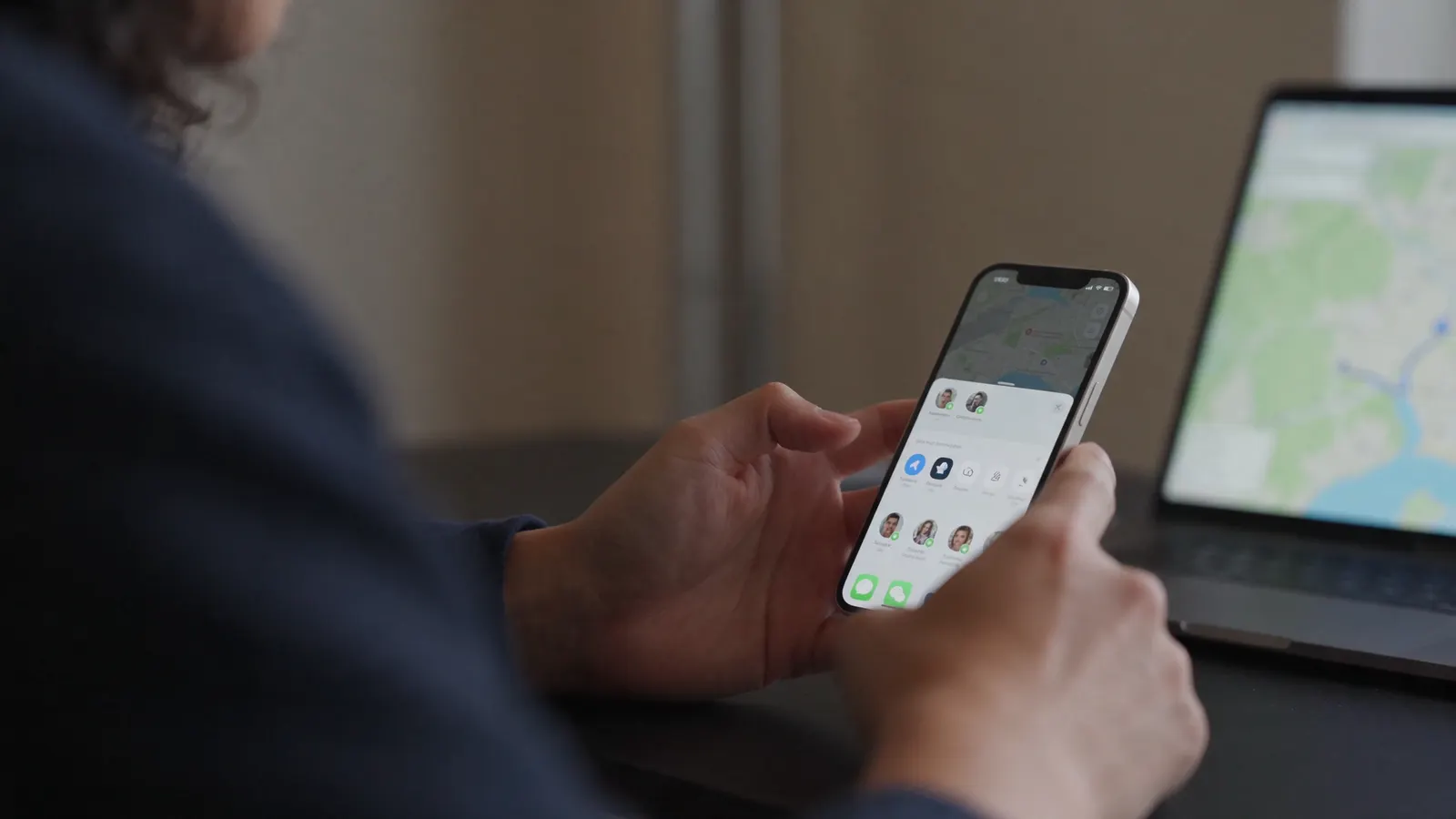
When you share from Photos, tap Options at the top of the share sheet and turn off Location before sending. To remove it from a saved photo, swipe up on it, tap Adjust next to the location and choose No Location. To stop new photos from recording it, set Settings > Privacy & Security > Location Services > Camera to Never.
What's Hidden in a Photo
Every photo your iPhone takes can store metadata: the date and time, the camera and lens, and, if Location Services is on for the Camera, the GPS coordinates. Those coordinates are often accurate to a few metres. Share a photo from your kitchen and you may be sharing your address.
Newer photos may carry more. Edited images and AI-generated pictures can include C2PA Content Credentials and other AI markers that record which app or model made or changed them.
Some services strip metadata when you upload, many don't, and email and file transfers almost never do.
Share Without Location
- Select one or more photos and tap the share button.
- At the top of the share sheet, tap Options.
- Turn off Location. The share sheet now says Location Not Included.
- Send as usual.
The setting applies to that share only, so you'll need to do it each time.
Remove Location From a Saved Photo
- Open the photo and swipe up, or tap the info button.
- Tap Adjust next to the location (or the map).
- Choose No Location.
You can select several photos, tap More, then Adjust Location to change them all at once.
Stop Recording Location
Settings > Privacy & Security > Location Services > Camera > Never. New photos won't record where they were taken. You lose the map view in Photos and location-based Memories, which some people miss and others are glad to lose.
Clean Everything at Once, in the Browser
For files you're about to upload, email or post, our free metadata remover shows what's inside a photo, including GPS on a map that's drawn on your device, camera details, C2PA credentials and AI markers, then saves a clean copy. It runs entirely in your browser and uploads nothing, so it's safe to use with private pictures.
Location in Screenshots
Screenshots don't record GPS, but they can still give away where you are: a map in the corner, a street sign, a boarding pass, a window view. Look at the picture itself, not just the metadata.
Where Hidero Fits
Hidero removes location and other EXIF metadata from photos as you import them, unless you turn that setting off, and photos taken with its encrypted camera never go through your camera roll at all. It's coming to the App Store in January 2027.
Questions
Does iPhone remove location when you send a photo?
Not automatically in every case. In the share sheet, tap Options and turn off Location to be sure. Some apps strip location when you upload, but you can't rely on that.
Do screenshots have location data?
No GPS is saved with screenshots. What's visible in the picture can still reveal where you are.
Does turning off location for the Camera remove it from old photos?
No. It only affects new photos. For older ones, remove location photo by photo, in bulk with Adjust Location, or with a metadata tool.
What is C2PA metadata?
C2PA Content Credentials are a standard for recording where an image came from and how it was edited, often added by AI tools and some cameras. They can include app names, edit history and sometimes more. Our metadata remover shows and removes them.
Sources
- Apple Personal Safety User Guide: Manage location metadata in Photos
- C2PA specification