How to Store Passport and ID Scans on iPhone Privately
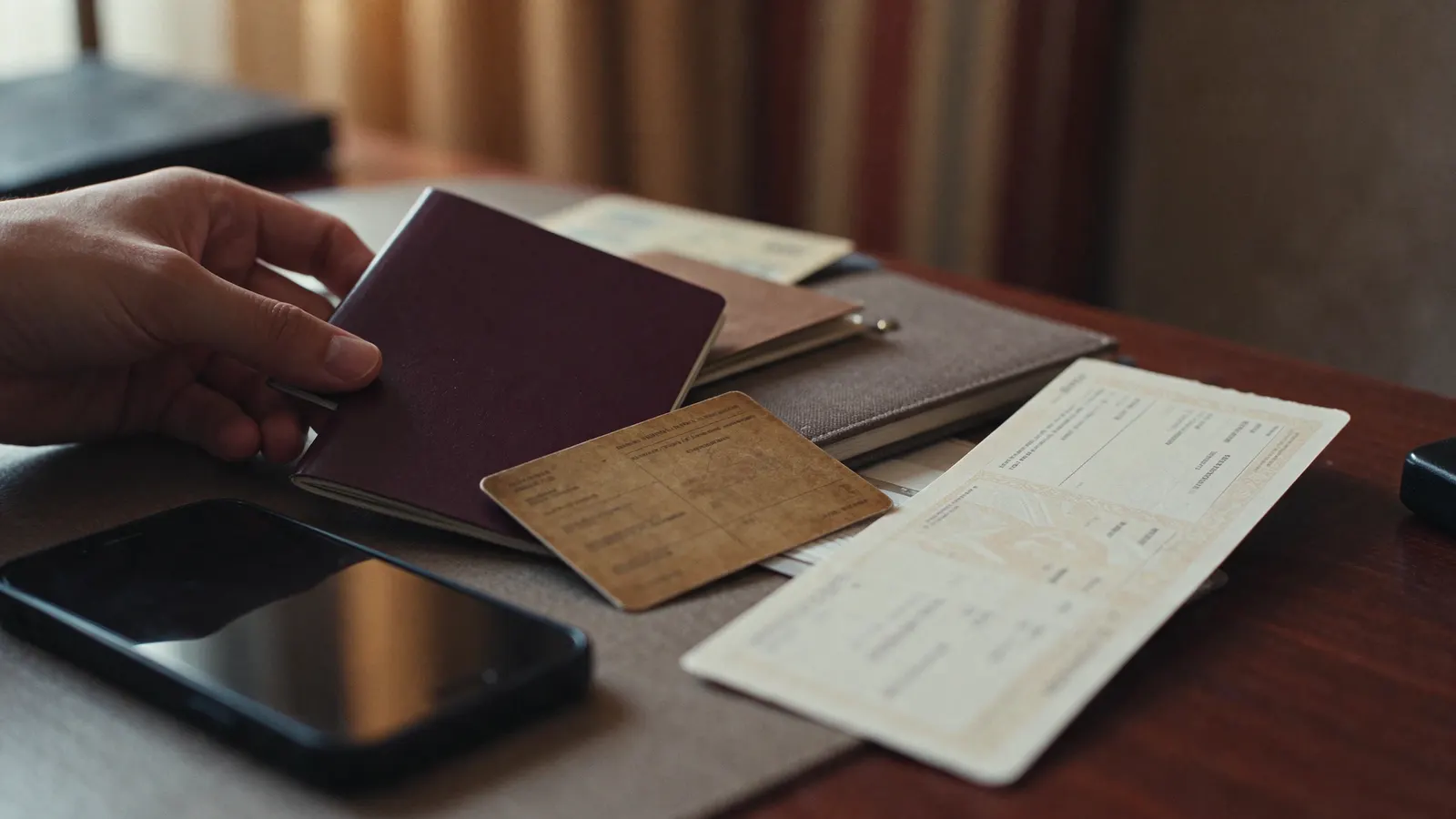
Keep ID scans out of the camera roll. Scan or photograph the document straight into an encrypted vault, or move it there right after, then delete the original and empty Recently Deleted. Add a watermark like "Copy for hotel check-in only" when you send a copy to someone, and share it from the vault only when asked. That way your passport isn't sitting next to holiday photos and screenshots.
Why Your Passport Photo Is a Big Deal
A clear photo of a passport or ID card has your full name, date of birth, document number, nationality, photo and signature. That's most of what someone needs to open accounts, rent things or pass a weak identity check in your name. Yet most of us have several of these photos scattered across the camera roll, Messages, email and cloud drives, sent once to a hotel or landlord and never thought about again.
You can't avoid having them. You can keep them in one private place.
Where ID Scans End Up
- Photos. The obvious one, and the one that syncs everywhere with iCloud Photos, shows up in search (iPhone can find "passport" by text), and sits next to everything you show friends.
- Files and Notes. The document scanner in Notes and Files saves PDFs, usually to iCloud Drive.
- Messages, WhatsApp, email. Every copy you sent stays in the thread, on your side and theirs.
- Downloads. Forms you filled in and saved.
A Better Setup
- Gather them once. Search Photos for "passport", "ID" or "licence" and look through Files and Notes.
- Move them into an encrypted vault with its own code, in one album: passport, ID card, driving licence, insurance cards, vaccination records.
- Delete the originals and empty Recently Deleted.
- Clean the chats. Delete old copies you sent, where you can.
- Next time, shoot directly into the vault if it has a camera, so the scan never reaches Photos.
Sharing a Copy Safely
When a hotel, landlord or employer asks for a copy:
- Send only what's needed. A front page, not every page.
- Watermark it. Add a line across the image: "Copy for [who], [date], not valid for other use." It makes the copy much less useful if it leaks. You can do this with Markup in Photos on a copy.
- Hide what they don't need. Some countries let you black out the document number or photo for certain uses. Our free redaction tool blacks out text and blurs faces in your browser without uploading anything.
- Strip the metadata. A scan taken at home can carry your home's GPS position. Our metadata remover cleans it.
While Travelling
Keep a copy of your passport in the vault and a paper copy in a different bag. If the passport is lost or stolen, a copy speeds up an emergency document at your embassy. If your phone is lost too, an encrypted backup you can open on another device is what saves you.
Where Hidero Fits
Hidero keeps documents like passport scans encrypted on your iPhone, behind a code that's separate from your passcode. Its encrypted camera shoots straight into the vault, and it removes location from photos on import unless you turn that off. Pro adds files and notes next to photos. Hidero is coming to the App Store in January 2027.
Questions
Is it safe to keep a photo of my passport on my phone?
It's useful, and it's safe if the photo is encrypted and kept out of the camera roll, chats and shared albums. A passport photo sitting in Photos is one swipe, one search or one leaked account away from someone else.
Can iPhone search find my passport photo?
Yes. Photos recognises text in images, so a search for "passport" or your name can surface the scan. Photos in an encrypted vault aren't indexed by iPhone search.
Should I watermark copies of my ID?
Yes, whenever you send one. A watermark that names who the copy is for and the date makes it much harder to misuse.
Where does the Notes scanner save documents?
Inside the note, which syncs to iCloud if Notes uses iCloud. The Files scanner saves a PDF where you choose, often iCloud Drive.
Sources
- Apple Support: How to scan documents on your iPhone
- Apple Personal Safety User Guide: Manage location metadata in Photos